
Setup guides
How to Optimise Your Home Setup for Watching Live Sport on IPTV
Discover how to get the best picture, sound, and smooth streaming when watching live sport on IPTV—covering internet speed, Wi-Fi vs Ethernet, and more.

In this article
- Should You Use Wi-Fi or Ethernet for Streaming Live Sport?
- What Internet Speed Do You Really Need for Smooth Live Sport?
- Reducing Latency: Why Live Sport Feels ‘Delayed’ (And What to Do About It)
- Optimising Picture Quality for the Big Match
- Getting the Best Sound for Live Sport Atmosphere
- Choosing the Right Device for IPTV Sport Streaming
- Setting Up Your IPTV App: Key Choices for Live Sport
- Maximising Reliability: Tips for a Buffer-Free Match Day
- Quick Troubleshooting Checklist for Live Sport Streaming
- FAQ
To enjoy live sport on IPTV in the best possible quality, you need more than just a good service—you also need the right setup at home. From internet speed to sound settings, a few tweaks can make the difference between a choppy stream and a match that feels like you’re right in the stadium. Here’s how to optimise your home viewing conditions for live sport on IPTV.
Should You Use Wi-Fi or Ethernet for Streaming Live Sport?
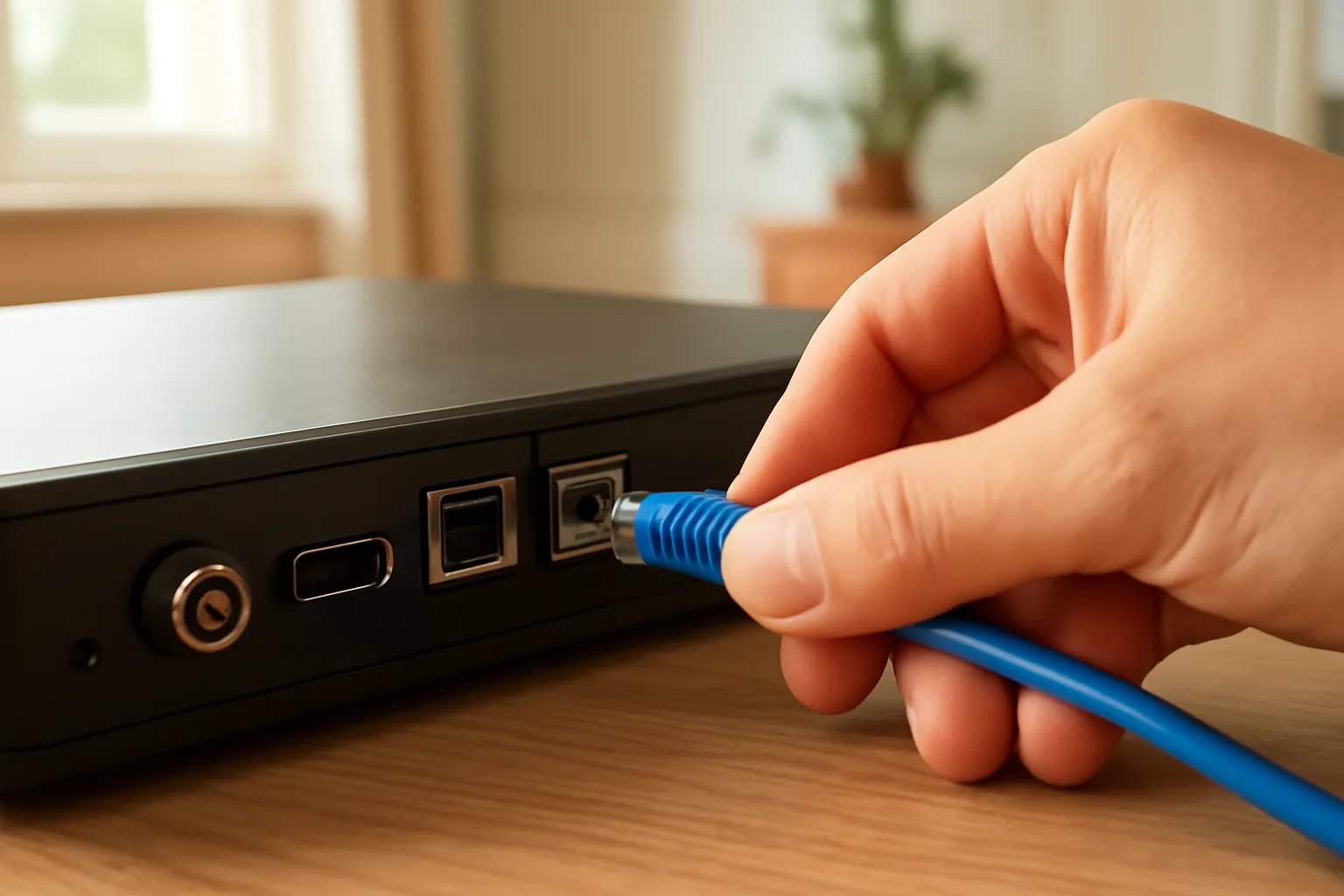
If you want the most reliable connection for live sport, Ethernet usually wins over Wi-Fi. Ethernet cables provide a direct, stable link between your device and your router. This reduces the risk of signal drops, interference from other devices, and fluctuations in speed. For high-pressure moments—think penalty shootouts or last-minute goals—you want zero delays or buffering.
Wi-Fi is more convenient, especially if your router is far from your TV or streaming box. However, Wi-Fi signals can be disrupted by walls, microwaves, or simply too many devices competing for bandwidth. If you must use Wi-Fi, try to position your router close to your streaming device and avoid physical barriers.
For those who can’t easily run a cable, consider using powerline adapters. These use your home’s electrical wiring to carry the internet signal, creating a wired-like connection without trailing cables. For more tips on reducing buffering, see our guide on how to fix IPTV buffering.
What Internet Speed Do You Really Need for Smooth Live Sport?
While it’s tempting to chase the fastest broadband package, most IPTV streams—including live sport—don’t require ultra-high speeds. For Full HD streams, a steady connection of at least 10 Mbps is usually enough. 4K streams need more—aim for at least 25 Mbps to avoid buffering and enjoy crisp visuals.
Bear in mind, your actual speed can dip if multiple people are streaming, gaming, or downloading at the same time. Run a speed test on the device you’ll be watching sport on, ideally at the same time of day you plan to watch. Consistency is key: a stable 20 Mbps beats a flaky 50 Mbps that drops out during crucial moments.
If you’re unsure about your connection, check with your internet provider. Some even offer free router upgrades or mesh Wi-Fi systems to improve coverage throughout your home.
Reducing Latency: Why Live Sport Feels ‘Delayed’ (And What to Do About It)
Latency is the time it takes for data to travel from your device to the server and back. In live sport, high latency means you might see a goal a few seconds after your mates do. Several factors affect latency: your internet provider, the distance to the streaming server, and your home setup.
To reduce latency, wired connections are best. If you’re using Wi-Fi, connect to the 5GHz band if possible—it’s faster and less crowded than 2.4GHz. Close other apps and devices that might be using bandwidth. Also, avoid using VPNs while watching live sport, as these can add extra delay.
Finally, check your streaming device’s settings. Some apps allow you to select the buffer size: a smaller buffer can reduce delay but may increase the risk of buffering if your connection is unstable.
Optimising Picture Quality for the Big Match
Picture quality matters most when you’re watching fast-paced action like football, rugby, or Formula 1. First, make sure your device and TV support Full HD or 4K, and that you’ve selected the highest quality available in your IPTV app’s settings. Not all content is available in 4K, but it’s worth enabling where possible.
Next, dive into your TV’s settings. Many modern TVs have a ‘Sport’ or ‘Dynamic’ mode that boosts brightness and sharpness, making fast movement clearer. However, these modes can sometimes overdo the colours or add unnatural effects, so tweak settings until you find what looks best to your eyes.
- Contrast: Increase for better clarity between players and pitch.
- Sharpness: Set to medium—too high can create halos around players.
- Motion smoothing: Some prefer it on for sport, but others find it looks artificial. Experiment to see what feels most natural.
For more device-specific advice, see our guide to using the Televo app on every device.
Getting the Best Sound for Live Sport Atmosphere
Audio is often overlooked, but good sound can turn a match into an experience. If you have a soundbar or surround system, use it! Many TVs and streaming devices can send audio via HDMI ARC or optical cable for better clarity and volume.
Check your TV’s audio settings and try modes like ‘Stadium’ or ‘Sports’. These often boost crowd noise and commentary, making you feel part of the atmosphere. If you prefer, some apps let you adjust the commentary volume separately from effects.
Don’t forget about speaker placement—angle them towards your main viewing spot to avoid muffled sound. And if you’re watching late at night, consider using headphones for immersive sound without disturbing others.
Choosing the Right Device for IPTV Sport Streaming
Your choice of device can affect both quality and reliability. Fire TV Sticks, Android TV boxes, Samsung and LG smart TVs, Sky Glass, and even phones or tablets all work with IPTV. For sport, choose a device that supports Full HD or 4K, and has an Ethernet port if possible.
Streaming boxes and smart TVs often have more powerful processors than budget sticks, which can help with smooth playback during fast action. If you already have a Fire TV Stick and want to get started, see our step-by-step guide on how to install IPTV on a Firestick.
Remember, older devices might struggle with high-bitrate streams or have outdated apps. If your picture stutters or buffers regularly, upgrading your device could be the solution.
Setting Up Your IPTV App: Key Choices for Live Sport
Most IPTV services, including Televo, work with popular IPTV player apps via Xtream Codes or M3U login. When setting up, always enter your details carefully and double-check your credentials before saving. Many apps let you choose stream quality—pick the best your connection can handle without buffering.
Explore the app’s settings for features like 7-day EPG (TV guide), catch-up for missed matches, and channel favourites for easy access during busy weekends. If you’re watching multiple matches at once, some apps support multi-screen viewing, but this will use more bandwidth.
Try out a few different apps if you’re not happy with the interface or performance—there’s no one-size-fits-all. Our article on how to choose an IPTV service covers the key features to look for in a provider and an app.
Maximising Reliability: Tips for a Buffer-Free Match Day
Even with the best setup, occasional hiccups can happen. To reduce the risk of buffering or sudden drops, restart your streaming device before the match starts. Close unused apps and pause other downloads in your household. If you have the option, connect via Ethernet rather than Wi-Fi for maximum stability.
It’s also wise to keep your IPTV app and device firmware up to date. Updates often include bug fixes and performance improvements that can make a real difference on match day. Lastly, make a note of your provider’s support contact—Televo, for example, offers 24/7 support on WhatsApp for instant help.
Quick Troubleshooting Checklist for Live Sport Streaming
- Buffering? Check your internet speed, switch to Ethernet or 5GHz Wi-Fi, and close other apps.
- Picture too dark or blurry? Adjust your TV’s picture settings and make sure you’re using the highest stream quality.
- Audio issues? Try a different sound mode, adjust speaker placement, or use headphones for personal listening.
- App crashing? Restart your device and check for updates to your app or system software.
- Still stuck? Contact your provider’s support for quick help.
FAQ
Can I watch live sport in 4K on all devices?
Not every device or channel supports 4K, but many modern smart TVs, streaming boxes, and compatible IPTV apps can deliver 4K content where available. Always check your device’s specifications and choose the highest quality stream in your app’s settings for the best experience.
Is Ethernet really better than Wi-Fi for IPTV?
Ethernet provides a direct, stable connection to your router, which is less prone to interference than Wi-Fi. This can make a big difference for live sport, reducing the risk of buffering and delays, especially during busy periods or in homes with many wireless devices.
What should I do if my picture quality drops during a match?
If your picture quality drops, first check your internet speed and try switching from Wi-Fi to Ethernet. Adjust your stream quality in the app, and make sure no one else is using up bandwidth. For more tips, see our guide on fixing IPTV buffering.