
Setup guides
What Internet Speed Do You Need to Stream Live Sport Smoothly?
Discover the ideal internet speed for streaming live sport on IPTV, plus tips on Wi-Fi vs Ethernet, latency, and the best TV and sound settings.
In this article
- Why Internet Speed Matters for Live Sport
- Wi-Fi vs Ethernet: Which Is Better for Streaming?
- Understanding Latency and Its Impact on Live Sport
- How to Test and Monitor Your Internet Speed
- Best Picture Settings for Watching Sport
- Getting the Best Sound for Live Matches
- Device Tips: Streaming on TV, Stick, or Mobile
- Extra Steps for a Flawless Match Day
- FAQ
Wondering what internet speed you need for smooth, uninterrupted live sport streaming? For the best experience, aim for a stable connection of at least 25 Mbps, use Ethernet where possible, and fine-tune your TV and sound settings. In this guide, we’ll walk you through every step to ensure you never miss a goal, try, or lap.
Why Internet Speed Matters for Live Sport
Streaming live sport is uniquely demanding. Fast-paced action, high-definition (HD) or 4K video, and real-time updates require a reliable and speedy internet connection. When your internet isn’t up to scratch, you may notice buffering, lag, or poor image quality—just when you want the action most.
For a crisp Full HD stream, a steady 15 Mbps is typically required. To watch in 4K (where available), aim for at least 25 Mbps, especially if others are online at home. Remember, advertised speeds are not always what you get at the device—Wi-Fi interference, distance, and network congestion can reduce performance. Always test your connection on the device you’ll use for watching sport.
With IPTV services like Televo, the stream quality will automatically adjust to your connection, but a faster line ensures you get the sharpest visuals and smoothest action. Knowing your real-world speed is the first step toward seamless sport viewing.
Wi-Fi vs Ethernet: Which Is Better for Streaming?
One of the most common questions is whether to use Wi-Fi or Ethernet for live sport. While Wi-Fi is convenient and modern routers offer good speeds, Ethernet (wired) connections still have the edge for reliability and consistency—especially during high-traffic events like big matches.
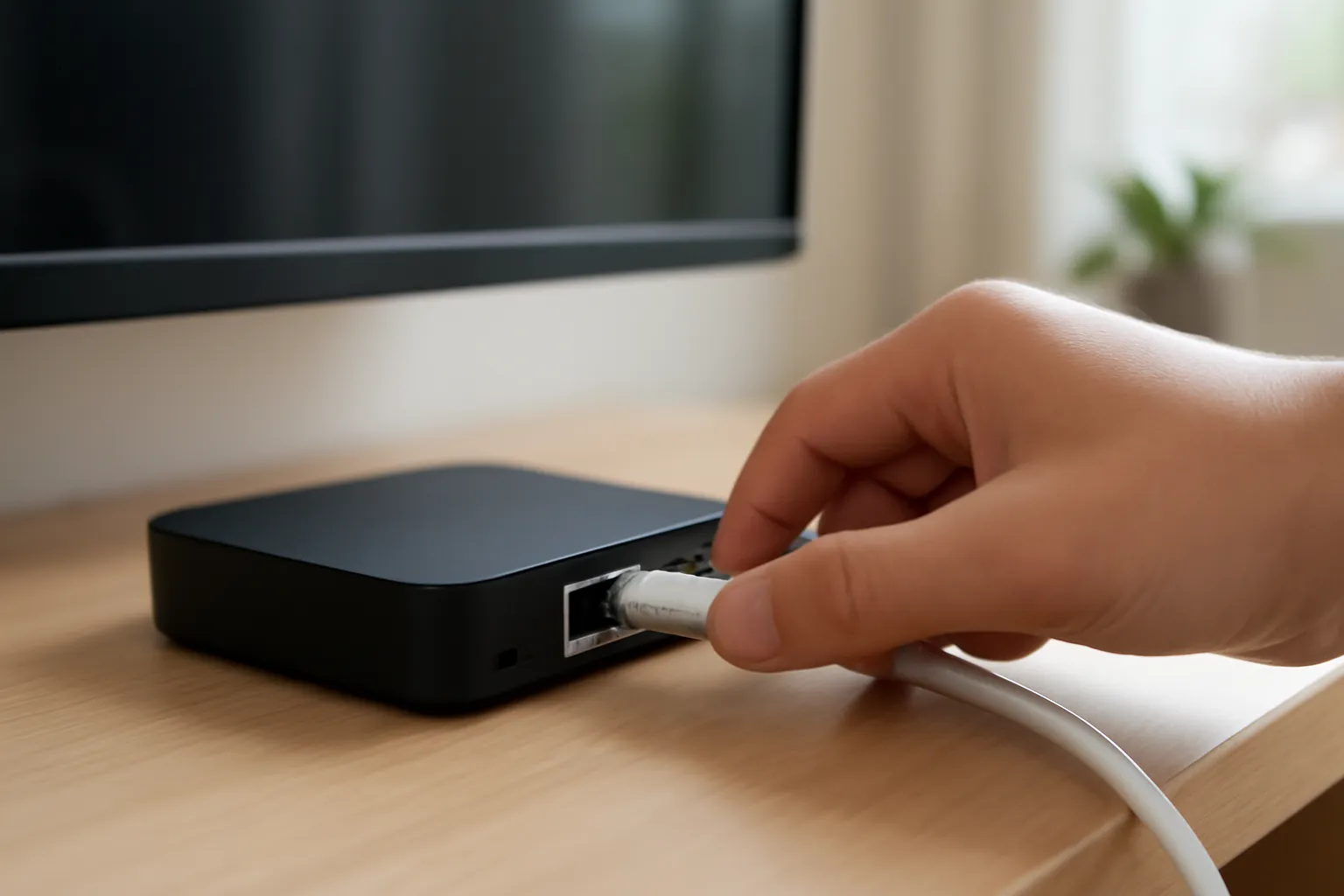
Ethernet cabling connects your device directly to the router, minimising the risk of dropouts, interference, or speed dips. If your TV box, Fire TV Stick, or smart TV is near your router, connecting via cable is highly recommended for the most stable experience. For those who can’t easily run a cable, consider using a powerline adapter, which uses your home’s electrical wiring to extend Ethernet access.
Wi-Fi remains a good option if you’re in the same room as your router or have a strong signal. To optimise, place your router in a central spot, away from walls and metal objects. For more tips, see our guide on how to fix IPTV buffering.
Understanding Latency and Its Impact on Live Sport
Latency is the delay between live action and what appears on your screen. For live sport, even a few seconds matter—especially if your phone pings with a goal before you see it! Lower latency means you’re closer to the real-time action.
Ethernet typically offers lower latency than Wi-Fi, so again, a wired connection is best for those who want to avoid spoilers. The type of IPTV player you use can also play a role; some apps buffer more aggressively to avoid interruptions, which may delay the stream by a few seconds. If your priority is seeing the action first, look for settings or apps that let you adjust buffer sizes.
Remember that all internet streaming has a small delay compared to broadcast TV, but with the right setup, you can keep this to a minimum and enjoy the game as it happens.
How to Test and Monitor Your Internet Speed
It’s easy to check whether your connection is up to the task. Use a speed test service (such as Speedtest.net) on the actual device you’ll use for IPTV. Run tests at different times of day, as speeds can fluctuate with network congestion.
For live sport in HD, look for a consistent download speed above 15 Mbps; for 4K streams, 25 Mbps is a safer bet. If your speeds vary, try connecting via Ethernet or reducing the number of devices competing for bandwidth. Pause large downloads and ask housemates to avoid heavy internet use during big matches.
Keep an eye on your router’s age and firmware, too. An old or overloaded router can bottleneck even the fastest broadband. Upgrading to a modern model can make a surprising difference in stream stability.
Best Picture Settings for Watching Sport
Every TV is different, but a few tweaks can make live sport look its best. Start by selecting your TV’s “Sports” or “Dynamic” mode, which boosts brightness and motion handling. If your set has a motion smoothing feature (sometimes called MotionFlow, TruMotion, or similar), experiment with it—some viewers love the ultra-smooth look, while others prefer it off for a more natural feel.
Adjust sharpness, brightness, and contrast to suit your room’s lighting. Too much sharpness can introduce noise, while too little can make fast action blur. If your TV supports 4K and HDR and your stream offers it, enable these features for richer colours and finer detail. Always check that your IPTV player app is set to stream at the highest available resolution.
For more on compatible devices and how to tweak your app settings, see our guide to the Televo app on every device.
Getting the Best Sound for Live Matches
Sound is half the excitement of live sport. Whether it’s crowd noise, commentary, or the crunch of a tackle, clear audio draws you in. Start by ensuring your TV or streaming device is set to stereo or, where supported, surround sound.
If you have a soundbar or home cinema system, connect via HDMI ARC or optical for the best fidelity. Many modern TVs allow you to adjust sound modes—try “Stadium” or “Sports” presets for enhanced crowd atmosphere. If dialogue is hard to hear, use the “Speech” or “Clear Voice” mode.
For late-night viewing, headphones can offer immersive sound without disturbing others. Wireless headphones paired over Bluetooth are convenient, but for the lowest delay, wired headphones are best—especially if you’re sensitive to audio lag during live action.
Device Tips: Streaming on TV, Stick, or Mobile
Different devices need different tweaks for the best sport experience. On a Fire TV Stick or Android TV box, keep software up to date for security and performance. If you’re using a Samsung or LG smart TV, install the latest IPTV app version and restart the TV before a big match to clear memory.
On mobile devices, close background apps to free up resources. Use landscape mode and increase screen brightness for clearer viewing. Tablets often offer a middle ground—bigger than phones, but portable enough to move around the house.
If you plan to watch on a computer, close unnecessary browser tabs and programs. A wired internet connection is even more important here, as laptops tend to have weaker Wi-Fi antennas than TVs or set-top boxes.
Extra Steps for a Flawless Match Day
Finally, prepare early! Log in and test your stream 10-15 minutes before kick-off to fix any last-minute glitches. Make sure your device’s power cable is secure, remote batteries are fresh, and the TV input is set correctly.
Minimise distractions—dim the lights, silence notifications, and settle in with your snacks. If you share your internet with others, kindly ask them to pause heavy downloads for the duration of the match.
With a little preparation, you’ll enjoy every second of the action, in the best quality possible. If you do experience issues, our IPTV buffering guide offers more troubleshooting tips.
FAQ
What is the minimum internet speed for live sport streaming?
For smooth HD streaming, aim for at least 15 Mbps per device. If you want to watch in 4K quality, 25 Mbps is ideal. Remember, other devices using the internet at the same time can affect your available speed, so it’s wise to have some extra headroom.
Does using Ethernet really make a difference?
Yes, using an Ethernet cable can significantly improve stability and reduce buffering or delays, especially during peak usage times. It’s the best choice for live sport if your device is near your router or you can use a powerline adapter for a wired connection.
How can I fix buffering during a live match?
If you experience buffering, check your internet speed, switch to Ethernet if possible, and close other apps or devices using bandwidth. For step-by-step help, see our detailed guide on how to fix IPTV buffering.